How to Check a Mac Cleaner's macOS Version Requirements
To check a cache cleaner's macOS version requirements, open the Apple menu and select About This Mac to identify your exact operating system and processor architecture. Compare these specific details against the developer's official documentation for your intended download route before attempting any installation.
Before installing any system utility, verifying compatibility is a critical first step to help maintain stability and functionality. When evaluating a Mac cleaner, strict adherence to its macOS version requirements is essential because these utilities interact closely with the operating system's file structure. A mismatch between your system specifications and the software's demands can lead to installation failures, reduced performance, or unexpected behavior that could disrupt your daily workflow.
Determining compatibility involves significantly more than simply knowing the marketing name of your operating system. You must identify your exact macOS version number and your Mac's specific processor architecture, as modern utilities often distinguish heavily between Intel and Apple Silicon hardware. Furthermore, the method you choose to install the software—whether through the Mac App Store, a direct download from the developer's website, or a package manager like Homebrew—can drastically alter the minimum system requirements for the exact same application. This guide provides a structured approach to checking these requirements accurately.
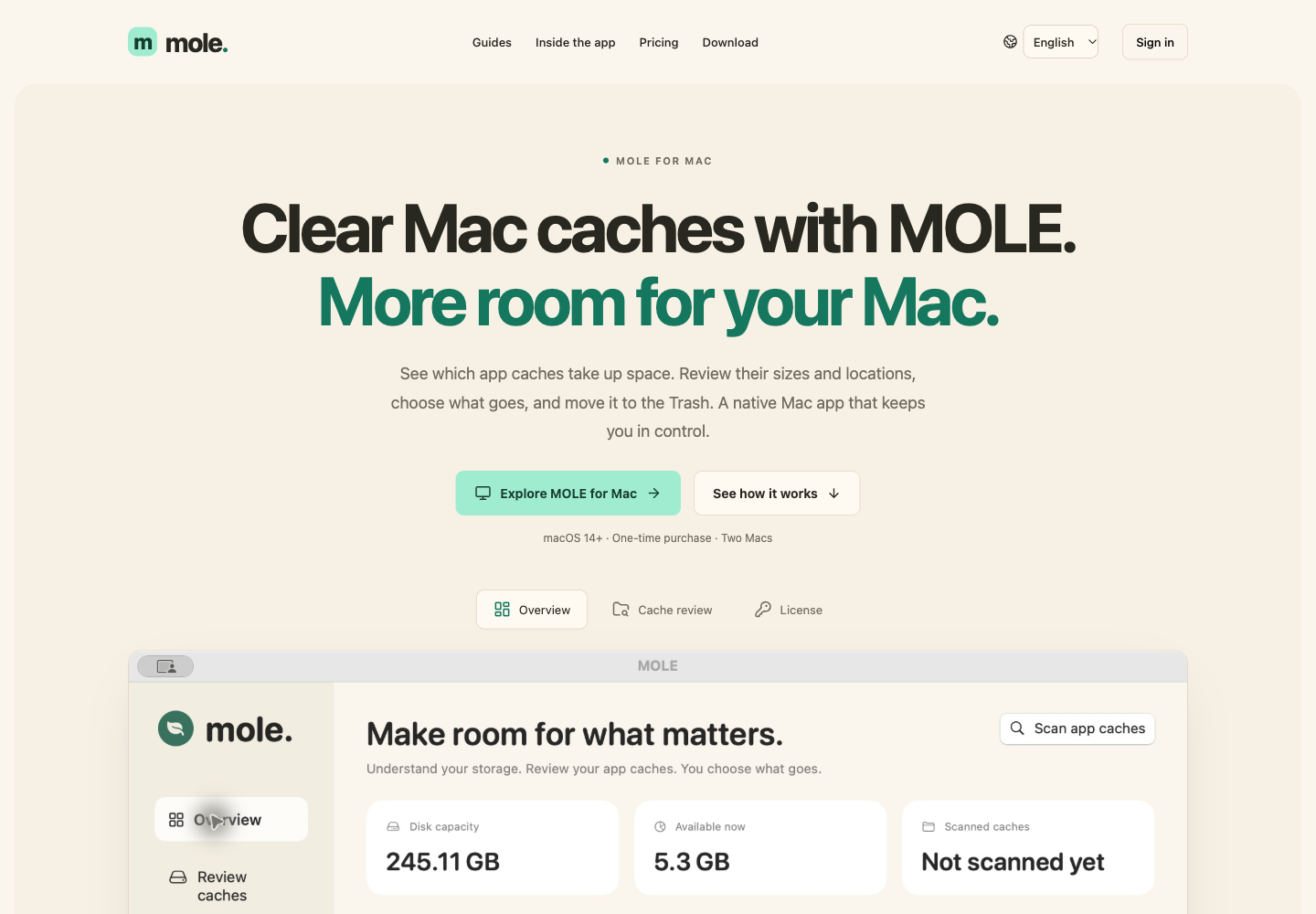
Public interface of mole.cheap, captured October 31, 2026. This screenshot shows the website interface, not an independent performance test; on-screen offers and examples are not verified results.
How Do You Verify Your Current macOS Version and Processor Architecture?
You must identify your exact macOS version number and your specific processor architecture by navigating to the Apple menu and selecting the About This Mac option before evaluating any utility's compatibility claims.
Understanding the Compatibility Challenge
The practical challenge is matching the developer's stated requirements to the exact Mac and utility release under consideration. Record the operating-system version and processor separately, then compare each with the developer's information. A broad product name or familiar application icon is not enough to identify the release or confirm it will run on your machine. If a compatibility listing refers to both Apple Silicon and Intel architectures, you must confirm whether that statement applies to the specific file you are about to download, or if separate downloads exist for each chip type. Avoid inferring packaging details, application performance, or system safety from the hardware label alone. Where a marketing page and the actual download description disagree, keep the mismatch open until the developer's technical documentation resolves it.
Users frequently attempt to download and install software based solely on the marketing name of their operating system—such as Monterey, Ventura, or Sonoma—without verifying the specific version number or confirming their hardware architecture. This oversight frequently leads to failed installations, cryptic system error messages, or suboptimal performance if the software is forced to run in a translation compatibility mode that it was not explicitly designed for. Furthermore, a developer might state that their software supports a specific macOS version and later, but a closer inspection of the technical specifications might reveal that this support only applies to Apple Silicon models, leaving Intel users on the exact same operating system entirely unsupported. Therefore, establishing a precise, documented baseline of your own system's specifications is the mandatory first step before evaluating any third-party utility's requirements.
Mac storage cleanup before a system update
When planning a Mac storage cleanup before a system update, knowing your current specifications becomes even more critical. Users often seek out cleaning utilities specifically because their current operating system is warning them of insufficient space to download and apply the next major macOS release. In this scenario, you must verify the utility you choose is fully compatible with your current, older operating system, not the newer version you are attempting to upgrade to. If you accidentally download a utility designed exclusively for the target upgrade version, the application will fail to launch, leaving you unable to clear the necessary space and effectively stalling your system update process.
Steps to Identify System Specifications
- Click the Apple logo located in the top-left corner of your screen to open the primary Apple menu.
- Select the "About This Mac" option from the dropdown list. This action opens a dedicated system information window that summarizes your hardware and software.
- Locate the macOS version information prominently displayed in this window. This will typically display the marketing name followed immediately by the specific version number (e.g., 12.6.8). Document this exact version number, as point releases can dictate compatibility.
- Identify the processor or chip information displayed in the same window. Note carefully whether it specifies an Intel Core processor or an Apple Silicon chip.
- Compare these documented details directly against the stated minimum requirements on the software developer's official compatibility page, confirming both the OS version and the architecture match.
Hypothetical Compatibility Scenario
Imagine a user attempting to install a modern disk analysis tool on a machine they purchased several years ago. They know they recently updated their operating system and are currently running macOS Monterey. Based on this information alone, they navigate to a developer's website and download the latest version of a cleaning utility that prominently advertises support for macOS Monterey and later on its homepage. However, upon attempting to launch the application after moving it to the Applications folder, they receive a system error stating that the software is incompatible with their architecture and cannot be opened.
Confused, the user returns to the Apple menu and checks the About This Mac window. They discover that their specific machine utilizes an older Intel Core i5 processor. Upon closer inspection of the developer's detailed technical specifications page—rather than just the marketing homepage—they realize that while the software does indeed support macOS Monterey, that specific release requires an Apple Silicon processor. The developer had deprecated Intel support in the previous major version update to streamline their codebase. The user must now seek out an older build of the software that maintains Intel support or find an alternative utility that still caters to their specific hardware architecture on macOS Monterey.
Decision and Acceptance Criteria
The decision to proceed with a software installation should only be made if both the exact macOS version number and the specific processor architecture explicitly match the utility's stated minimum requirements. If the software requires a newer macOS version than what is currently installed, the user must either upgrade their operating system or seek an official legacy version of the utility. If the software requires a newer processor architecture entirely, such as an Apple Silicon exclusive on an older Intel Mac, the installation must be aborted, as the application will fundamentally not function. Relying on assumptions about compatibility based on the age of the computer or the broad marketing name of the operating system is insufficient; only a direct, meticulous comparison of the data found in the About This Mac window against the developer's official documentation provides the necessary confirmation to proceed safely.
Why Do Different Installation Methods Have Specific macOS Requirements?
Check the requirements for the exact installation route you intend to use, as a direct download, store listing, and package-manager entry often describe different releases or enforce distinct minimum operating-system versions.
The Impact of Distribution Channels
Users frequently operate under the assumption that a specific software application possesses a single, universal minimum system requirement regardless of how it is acquired or installed. However, the chosen distribution channel heavily influences compatibility and can dictate entirely different baseline requirements for the exact same utility. Developers distribute software through multiple avenues to reach different user bases, and each avenue has its own strict set of rules, dependencies, and technical constraints that must be adhered to. For example, the Mac App Store enforces strict sandboxing rules and requires developers to build against specific, often newer, Apple SDKs. This can force a developer to set a higher minimum macOS requirement for their App Store release compared to the version they host on their own website.
Similarly, package managers like Homebrew introduce their own layer of compatibility constraints. A package-manager route can have its own platform requirements and dependencies; inspect the particular entry instead of assuming all utilities share the same installation chain. A dependency or packaging change may alter support for that route. Compare the documented release and requirements rather than inferring a cause from a higher minimum version alone. For instance, a command-line utility might require macOS 14 Sonoma or later when installed through Homebrew due to dependency requirements, while the exact same tool's direct project download might officially support macOS 12 Monterey or later.
If you use a package manager, read the entry and linked project requirements for that specific route. Compare the stated software version with the developer's direct release before treating the two as interchangeable. Do not change your system or bypass a stated requirement merely because another page lists a broader range. Where the documentation is inconsistent, record the discrepancy and request clarification. Keep the intended installation route in your notes so a later reviewer does not apply requirements from a different channel.
Steps to Verify Method-Specific Requirements
- Identify your preferred installation method for the utility before checking requirements, deciding between the Mac App Store, a direct website download, or a package manager.
- Navigate to the specific documentation or storefront page for that exact distribution method. Do not rely on general web searches or the developer's main homepage for compatibility.
- Locate the minimum macOS version required for that specific channel. For the Mac App Store, this is found in the Information section at the bottom of the app's page.
- Compare this method-specific requirement against your system details gathered from the About This Mac window.
- If your preferred method is incompatible with your current system, evaluate alternative official distribution channels to see if they offer broader compatibility for your specific macOS version.
Comparing Installation Requirements
The following table illustrates how minimum macOS requirements can vary significantly based on the chosen installation method, requiring you to verify your specific intended route.
| Distribution Channel | Typical Constraint Source | Example Impact on Compatibility |
|---|---|---|
| Direct Developer Download | Developer's internal codebase | Often provides the broadest compatibility, supporting older macOS versions. |
| Mac App Store | Apple's SDK and sandboxing rules | Frequently requires a newer minimum macOS version than direct downloads. |
| Package Manager (Homebrew) | Underlying formula dependencies | May drop older macOS support aggressively to align with dependency updates. |
Hypothetical Distribution Scenario
In this hypothetical distribution scenario, a user wants a disk-analysis utility for an older Mac running macOS 10.13 High Sierra. They open the Mac App Store, search for the utility, and find that the store listing explicitly requires macOS 12 Monterey or later. The App Store prevents the download entirely. Instead of assuming the product is entirely unavailable for their machine or looking for a dangerous workaround, the user records the store release and the listed requirement. They then navigate to the developer's official website to check whether the developer documents another authorized release for the older system via a direct download.
Upon checking the developer's technical specifications page, they discover that the direct download version of the exact same application maintains compatibility all the way back to macOS 10.13 High Sierra. The developer had to raise the App Store requirement to comply with new Apple policies but kept the direct download compatible with older machines. The user successfully downloads the application directly from the developer, demonstrating why checking the specific installation route is mandatory.
Decision and Acceptance Criteria
The chosen installation method must be explicitly validated against the current macOS version before any download is attempted. Users should never assume that compatibility listed on a developer's homepage applies universally to the Mac App Store or package manager versions. If the primary installation choice is unsupported by the current operating system, the user should pivot to an alternative official distribution channel, provided one exists and supports their specific macOS version. The software should only be installed if the requirements of the specific distribution channel are fully met by the host system.
How Can You Safely Navigate Legacy Support for Older macOS Versions?
When running an older macOS version, you must locate and verify specific legacy builds provided officially by the developer through their support channels rather than attempting to force the current flagship release to install.
The Challenge of Aging Operating Systems
For an older operating system, identify the supported release before choosing a download. A product’s current marketing page may not describe a historical build, focusing entirely on the newest features designed for the latest Apple hardware. Look for version-specific information in the developer's knowledge base that states which release is intended for the system you actually have. Keep the source URL, release label, and stated limitations together in your notes. Do not infer ongoing support, active security maintenance, or functional suitability from the mere availability of an older download link. Those are separate questions to check in the developer’s documentation, as legacy builds are often provided as-is without future updates.
Users operating on legacy systems face the distinct problem of finding compatible software without compromising their system's integrity. When the current version of a utility no longer supports their operating system, users are often tempted to search the broader internet for older versions. This practice is highly risky. Downloading executable files from unauthorized third-party mirrors, software archive sites, or peer-to-peer networks introduces a severe risk of acquiring modified, compromised, or malware-infected software. Because system cleaners require deep access to the file system to function, granting administrative privileges to an unverified binary downloaded from a random forum is a massive security vulnerability. The only safe and acceptable approach to acquiring software for an older Mac is to navigate the developer's official support infrastructure to find explicitly authorized and hosted legacy versions.
Steps to Locate Official Legacy Builds
- Determine your exact macOS version using the About This Mac menu and confirm that it falls below the minimum requirement for the developer's current flagship release.
- Navigate directly to the developer's official website and locate their support, help center, or knowledge base section. Avoid using third-party search engines to find direct download links.
- Search the official documentation for specific terms like legacy versions, older macOS support, previous releases, or compatibility matrix.
- Locate the specific legacy build that explicitly lists your older macOS version within its supported range. Pay attention to any notes regarding discontinued support or missing features for that specific build.
- Download the installation package exclusively from the developer's official domain, verifying the source URL in your browser's address bar before executing the downloaded file.
Hypothetical Legacy Installation Scenario
In this hypothetical legacy case, a user has an older Mac running macOS 10.12 Sierra and finds that the utility’s current release requires macOS 10.13 High Sierra or newer. The user first records the exact version of their Mac and the release named on the product page. Rather than treating a familiar brand name as enough evidence to search for a cracked or archived version on a third-party site, they look for the developer's historical compatibility information within the official support portal.
They discover a dedicated knowledge base article detailing operating system support. The article confirms that while the current flagship version requires macOS 10.13 through macOS 26, the developer officially hosts and provides older, specific versions needed for macOS 10.10 through 10.12. The user checks the release notes and limitations for this older build before downloading it directly from the developer's secure server. They also confirm whether the core cleaning feature they actually need exists in that older release. If no suitable authorized build had been documented, they would have stopped the attempted installation and considered a different documented workflow entirely. An official source improves the traceability of the download, but it does not by itself prove that the old build is maintained with modern security standards.
Decision and Acceptance Criteria
A legacy version of a utility should only be downloaded and installed if it is officially hosted by the original developer on their verified domain. The documentation accompanying the legacy build must explicitly list the user's older macOS version in its supported range. If a developer does not officially provide or host older versions of their software, users must not attempt to source the application from third-party mirrors or unofficial archives under any circumstances. In such cases, the software must be deemed unavailable for that specific machine, and the user should seek an alternative utility that currently maintains official, secure support for their legacy operating system.
Does Base macOS Compatibility Guarantee Full Feature Availability?
A stated macOS compatibility range does not automatically provide access to every advertised feature, requiring you to check the requirements for specific functions and inspect their behavior on your intended system before relying on them.
The Reality of Feature Disparity
A useful evaluation separates product-level requirements from feature-level requirements. Write down the specific job you need to accomplish before comparing releases. For example, if you need to review application storage, the acceptance question is whether that specific review workflow is available and understandable on your system. Do not treat a successful application launch, a familiar interface, or a marketing screenshot as evidence that every function works identically across all supported operating systems. Base compatibility simply means the application binary can execute without crashing; it does not mean the underlying operating system possesses the necessary APIs to support every advanced tool the developer has built.
The supplied compatibility information usually distinguishes operating-system support from feature availability. Use that distinction to build a practical check: identify the feature, locate any feature-specific requirement in the documentation, and record whether it applies to the release you plan to install. If a control is absent or unavailable after installation, ask the developer whether that is an operating-system limitation, a release difference, or another condition. Do not invent a technical explanation involving missing frameworks or machine learning capabilities. Keep the result as an observed limitation until the relevant documentation or support response explains it. This prevents a broad compatibility claim from becoming an unsupported promise about the exact workflow you need.
Steps to Verify Specific Feature Support
- Identify the specific features or tools within the utility that are critical to your intended workflow before purchasing or installing the software.
- Review the utility's official release notes, version history, and detailed technical documentation, paying close attention to any footnotes or asterisks regarding feature availability.
- Search the developer's knowledge base for the specific feature name to see if it lists distinct macOS requirements separate from the base application's requirements.
- After installation, systematically test the required core functionality to check if it operates as expected on your specific operating system.
- Consult official support channels or documentation if an advertised feature appears missing or inaccessible after verifying base compatibility, to confirm if it is an OS-level limitation.
Hypothetical Feature Limitation Scenario
A user decides to conduct a pre update disk space review on a Mac running the absolute minimum supported macOS version listed by a developer. The installation process completes without any errors, and the application launches successfully. The user is able to perform basic storage scans, identify large files, and clear standard application caches, confirming that the core functionality is intact and working as intended for their review.
However, when they attempt to utilize a newly advertised feature designed to analyze and securely erase specific types of hidden system application data using a new snapshot technology, they find the option is grayed out or entirely absent from the menu. Confused, they consult the developer's detailed release notes for that specific update. They discover that the new secure erasure feature relies on a specific file system API introduced in a much newer macOS version. The application is functioning correctly according to its design constraints; it has simply disabled a feature that the underlying operating system cannot support safely. The user must accept this limitation, demonstrating that base compatibility does not equal full feature availability. They must decide if the remaining tools are sufficient for their pre update disk space review or if they need a different approach.
Decision and Acceptance Criteria
The utility should be considered acceptable for use only if the specific features required by the user are confirmed to be functional on their particular macOS version. Users must evaluate the software based on its actual performance and available toolset on their system, rather than relying solely on marketing materials that may highlight features requiring newer operating systems. If a critical feature is unavailable due to OS-level restrictions, the user must decide whether the remaining core functionality justifies the installation or if they need to seek an alternative tool whose required feature set is fully supported on their current macOS version.
Frequently Asked Questions
How do I find my exact macOS version?
Click the Apple logo in the top-left corner of your screen and select "About This Mac." The resulting window will display your macOS marketing name and the specific version number required for checking software compatibility accurately.
Does processor type affect Mac cleaner compatibility?
Yes. Utilities often specify support for either Intel processors, Apple Silicon (M-series), or both. You must verify your specific processor type in the "About This Mac" window and ensure it matches the software's stated hardware requirements.
Are App Store requirements the same as direct downloads?
They frequently differ. Compare the exact release and requirements shown for the specific download route you intend to use. Never assume that a store listing and a direct download describe identical builds or support the same older systems.
Conclusion and Next Steps
Before choosing a Mac utility, record your exact operating-system version and processor architecture, then compare them meticulously with the documented requirements for the specific release and download route. For older systems, check whether the developer offers an authorized legacy release and whether its limitations fit your task. Availability alone does not establish ongoing maintenance or safety. Keep feature requirements separate from the application's general compatibility range, and record unresolved differences rather than treating them as installation approval. Your next step is to complete a small compatibility worksheet for one candidate utility: source page, release, download route, required feature, and questions still needing an answer. Proceed only when the information is adequate for your intended use, without bypassing system requirements. For more information, visit mole.cheap.
Disclosure: This article is provided by the operator of mole.cheap. Related website: https://www.mole.cheap/.